
Your Accepted Offer Assistant
The Real Estate SuiteSet this up once in Claude. After that, upload screenshots of an accepted offer and Claude writes your buyer’s next-steps email and a one-page checklist, in your brand.
Set aside about 15 minutes. You’ll need:
- A free or paid Claude account. Sign up or log in at claude.ai. Projects are included on every plan, including free.
- Your logo saved on your computer as a PNG or JPG.
- Microsoft Word (or Google Docs) to edit the email template.
How this page works: Go through the steps in order. Anywhere you see a Copy button, click it, then paste into Claude with Ctrl+V (PC) or ⌘+V (Mac).
Download and personalize your email template
~5 minThis is the email Claude will follow for every accepted offer, so make it sound like you.
Download the email template (Word)
- Open the file you just downloaded in Microsoft Word or Google Docs.
- Fill in your own recommendations. The template leaves empty slots for home inspectors, insurance brokers and law firms. Replace [Inspector name], [email address], [phone number] and [website] with the people you like to refer, and delete any slots you don’t need.
- Change anything else you’d like, such as your brokerage’s name in the Deposit section or the way you say things.
- Leave every other square bracket alone, along with the red notes. Those are the ones Claude fills in for each deal, like [name] and [Subject Removal Date], and the red notes tell it which version of a section to use.
- Save the file somewhere easy to find, like your Desktop.
Tip: Links you add to the document stay clickable, so Claude can carry them straight into your emails.
Create your project in Claude
~2 minA project is a home base that remembers your instructions and files, so you only set this up once.
- Go to claude.ai/projects. You can also click Projects in Claude’s left sidebar.
- Click + New project in the top right corner.
- Copy the project name below and paste it into the name box.
Project name
Buyers - Accepted offer
- Copy the description and paste it into the description box.
Project description
Upload screenshots of an accepted offer to get a next-steps email and a one-page checklist for my buyers.
- Click Create project.
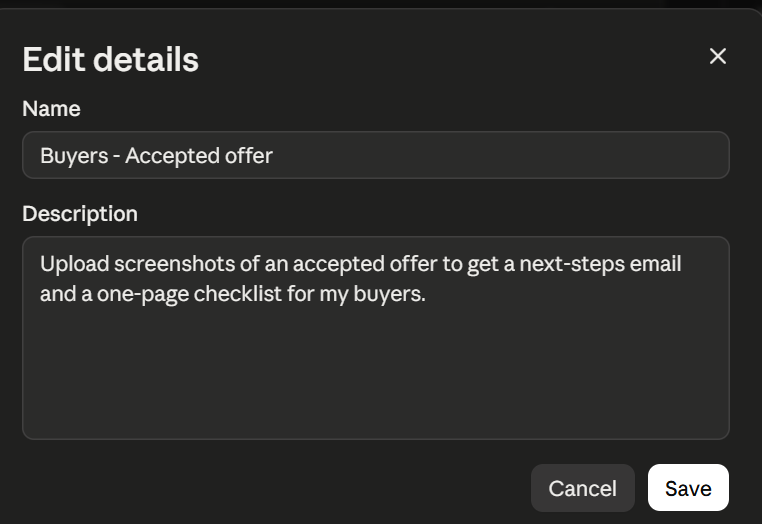
The name and the description, both in the same dialog. You can reopen it any time from the three dots at the top right of your project.
Add your instructions
~3 minThese instructions tell Claude exactly how to build your email and checklist every time.
- Fill in your details below. Your instructions update as you type.
Don’t know your brand colour code? Click the colour square above to pick one, or ask your designer for the “hex code”. It starts with a #.
- Have a look at what you are about to copy, then click Copy instructions.
Preview your instructions
- On the right of your project, find Instructions and click the + beside it. Once you have saved something there, that + turns into a pencil.
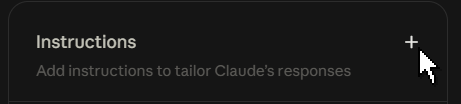
Instructions sits at the top of the right-hand panel, with the + on its right. - Paste into the box, then click Save instructions.
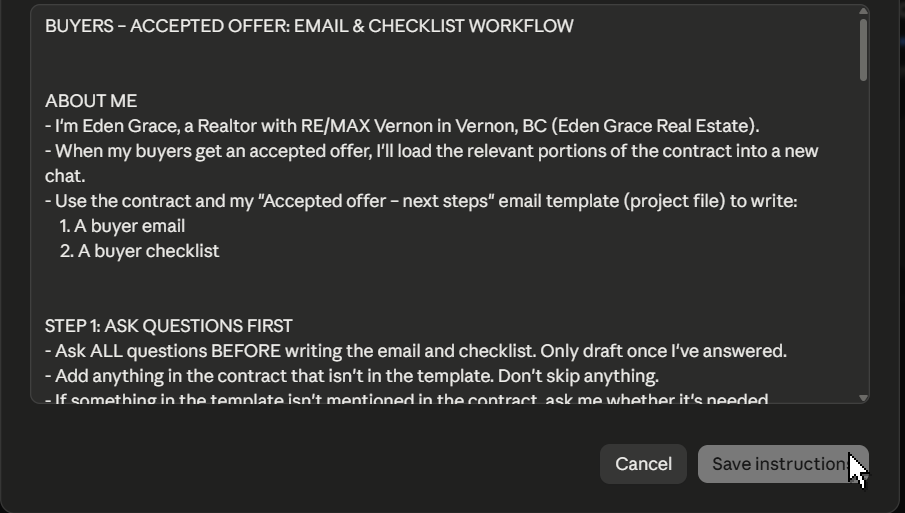
The Set project instructions box, with Save instructions at the bottom right.
Upload your email template and logo
~1 minClaude uses these two files in every chat in this project.
- On your project page, find Context on the right side, under Instructions.
- Click the + button beside it, then choose Upload from device.
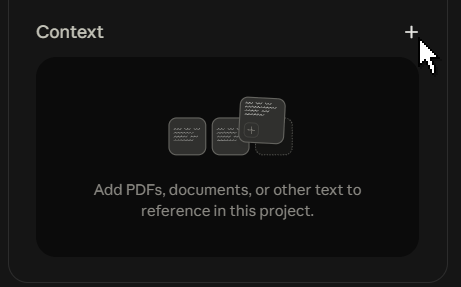
Context sits under Instructions. The + beside it opens the upload menu. - Select your edited email template from Step 1 and your logo. You can select both at once by holding Ctrl (PC) or ⌘ (Mac) while you click.
- Wait until both files show up in the list. That’s it, your project is ready.
Take screenshots of the accepted offer
~3 minDo this each time a buyer gets an accepted offer.
- Open the signed contract on your computer.
- Screenshot each page that has key details:
- Property address, purchase price, and deposit
- All subjects and terms, plus any addendums
- Completion, possession, and adjustment dates, and included items
- Leave out names. Don’t include the buyers’ or sellers’ names, signatures, or initials in your screenshots. Just drag your screenshot box so they’re outside it.
How to take a screenshot
PC: Press Windows+Shift+S, then drag a box around what you want.
Mac: Press ⌘+Shift+4, then drag a box around what you want.
If a name sits in the middle of a page, take two screenshots (above and below the name) instead of one.
Start a chat and send your screenshots
~1 min- Open your Buyers - Accepted offer project from claude.ai/projects.
- Click in the message box on the project page. Every chat you start here uses your instructions and everything in your Context.
- Drag your screenshots into the message box. You can also click the + below it and choose Add files or photos.
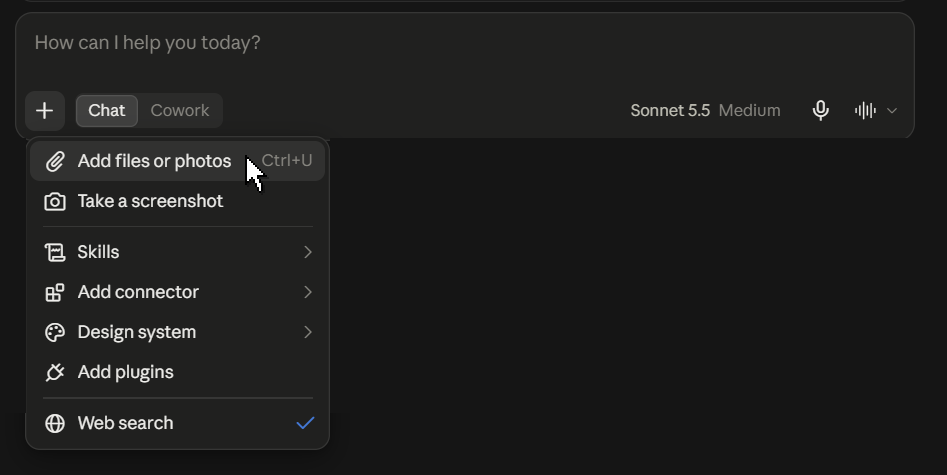
The + below the message box. Add files or photos is the first item. - Press Enter. You don’t need to type anything with them: your instructions already tell Claude what to do with a contract.
Answer Claude’s questions and send your email
~3 min- Claude will ask you a few questions first, like whether the inspection is already booked. Answer each one. Short answers like “yes” or “no” are fine.
- Claude then creates your email page and your checklist PDF.
- Open the email page and click Copy subject, then paste it into your email’s subject line.
- Click Copy email, then paste it into the body of your email. Your colours, bold text, and links come along too.
- Download the checklist PDF and attach it, along with anything else you mention in the email (like your trust account info).
- Add your client’s name where it says [name], give it a final read, and send.
Starting a new line: press Shift+Enter to drop to the next line without sending. Enter on its own sends the message, which catches people out when they are partway through a longer answer.
Want a change? Just tell Claude in plain words, like “make it shorter” or “move the lawyer section up”. If you want the same change every time, add it to your project instructions, or ask Claude to add it to the project memory.
Bonus: use your own checklist design
Already have a checklist you love? Claude can match its look.
- Save your checklist as a PDF or image (PNG or JPG).
- In your project, click + beside Context and upload it, just like in Step 4.
- Type the file’s exact name here:
- Have a look at what you are about to copy, then click Copy checklist instructions.
Preview checklist instructions
- Open your project instructions (the same spot as Step 3). Paste at the very bottom, then click Save instructions.
Want more like this, or feel overwhelmed with Claude?
You just built a system that handles one moment in a deal, in about fifteen minutes. The Suite is the rest of them, arriving one week at a time so it never lands on you all at once. And if Claude itself is the part that feels like a lot, the course starts from the very beginning.
The Dwelling
The Claude for Realtors course comes with it. Roughly an hour of video instruction with a step-by-step guide to follow along: getting Claude onto your phone and your laptop, the privacy rules that actually matter for a Realtor, your first real conversation, running a Suite prompt start to finish, and the projects that turn a one-off into something you reuse. Every part of it ends with something built rather than something explained.
Alongside it: both blogs, the social content, the prompts, a monthly tech tip, and live training with your community on the third Wednesday of every month.
$99 a month, or $1,099 for the year. Leave any time.
Just want the course?
It is sold on its own as well, and it opens Monday. Leave your email and we will tell you the moment it is live.